Icons are the shorthand of Instagram: tiny graphics that tell you where to go, what to do, and how people are interacting with your content. For a network that moves fast, recognizing those symbols saves time and keeps you from missing opportunities—like a comment that needs a reply or a product tag that might sell.
I’ve spent years helping creators and small businesses decode social platforms, and I still find new icons popping up during product updates. This guide walks through the most common symbols you’ll encounter, explains what they mean, and offers quick tips for using them to your advantage.
- Getting started: the main navigation icons at the bottom
- Top bar icons: quick actions and status indicators
- Table: common Instagram icons and their basic meanings
- Post interaction icons: how people engage with content
- Stories and their special icons
- Interactive story stickers: what the symbols represent
- Direct messages and message-related icons
- Reels, live, and video icons explained
- Profile icons and account status symbols
- Shopping icons: tags, bags, and product labels
- Composer and post-creation icons
- Privacy, safety, and account control icons
- Notification icons and badges
- How to use icons strategically to grow your account
- Troubleshooting icons that disappear or behave oddly
- Accessibility and icon clarity: reading beyond the symbol
- Final thoughts on reading Instagram’s visual language
Getting started: the main navigation icons at the bottom
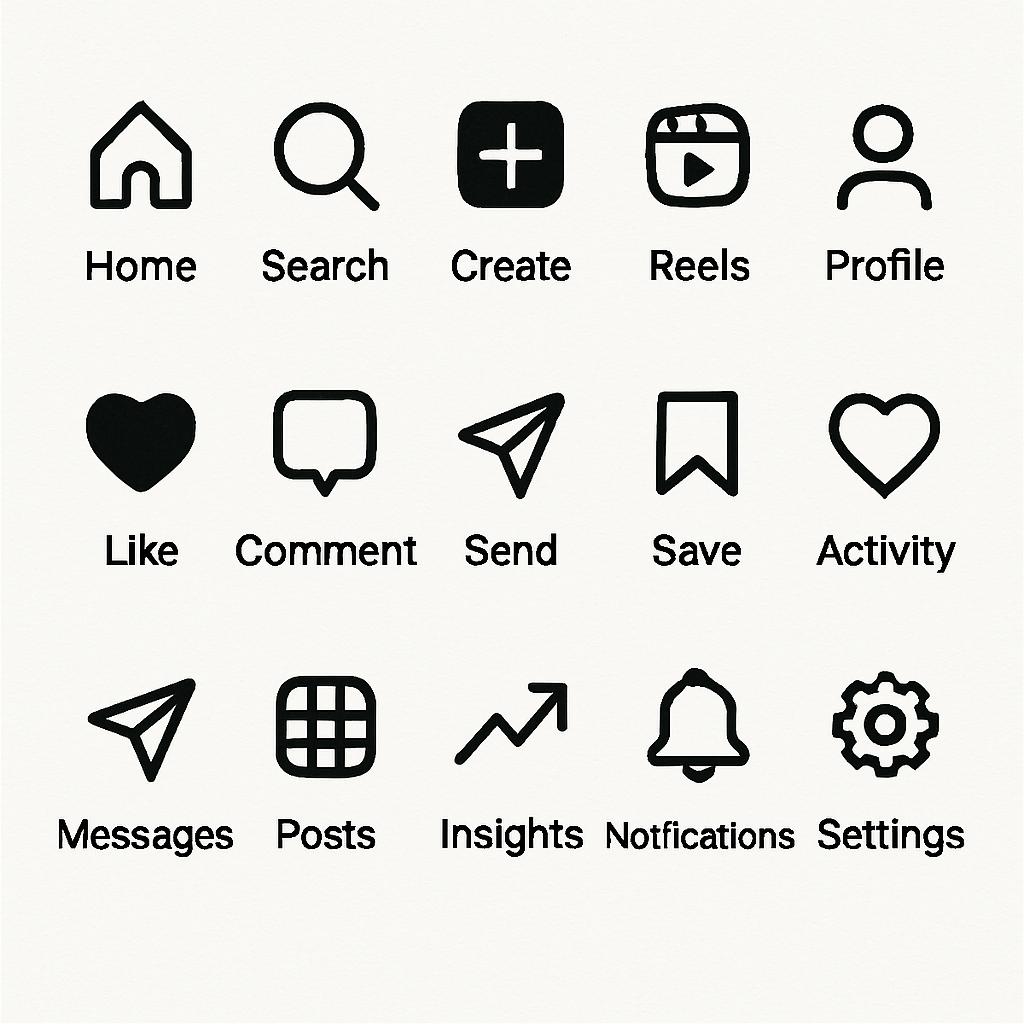
The five icons along the bottom of the Instagram app are your map: home, search, Reels, shop, and profile. Each one opens a distinct area of the app; learning their subtle behavior helps you move around faster and find content that matters.
Tap home to return to a personalized feed, search to explore people and hashtags, Reels for short-form video, shop to browse products, and the profile icon to manage your account. If you switch to a creator or business account, small changes may appear here, but the basics remain the same.
On some devices the order or visibility of these icons can shift with tests and updates, so if an icon is missing, check for an app update or temporary feature test. I once woke up to a new Reels-first layout and had to rediscover where the shop icon migrated—annoying, but easily solved with a quick swipe and a moment of exploration.
Top bar icons: quick actions and status indicators
The top of your screen carries a handful of icons that change depending on context: a camera shortcut, the plus sign to create a post, the messaging icon, and sometimes shortcuts to reels or live streams. These icons are dynamic—what you see can depend on whether you’re looking at your feed, a profile, or someone’s story.
A paper plane or messenger bubble sends you to Direct Messages; a camera icon lets you create a story or reel. Pay attention to small badges—like a dot on the messenger icon—which indicate unread messages or new activity.
Table: common Instagram icons and their basic meanings
Below is a concise reference for the icons you’ll encounter most frequently. Keep it handy until the shapes become familiar.
| Icon | Typical meaning |
|---|---|
| House | Home feed |
| Magnifying glass | Explore / search |
| Play / clapperboard (Reels) | Short-form video feed |
| Shopping bag | Instagram Shop / product discovery |
| Profile silhouette | Your profile page |
| Heart | Like activity or notifications |
| Paper plane / messenger | Direct Messages / sharing |
| Bookmark | Save post to collection |
| Three dots | Post options / menu |
| Blue check | Verified account |
Post interaction icons: how people engage with content
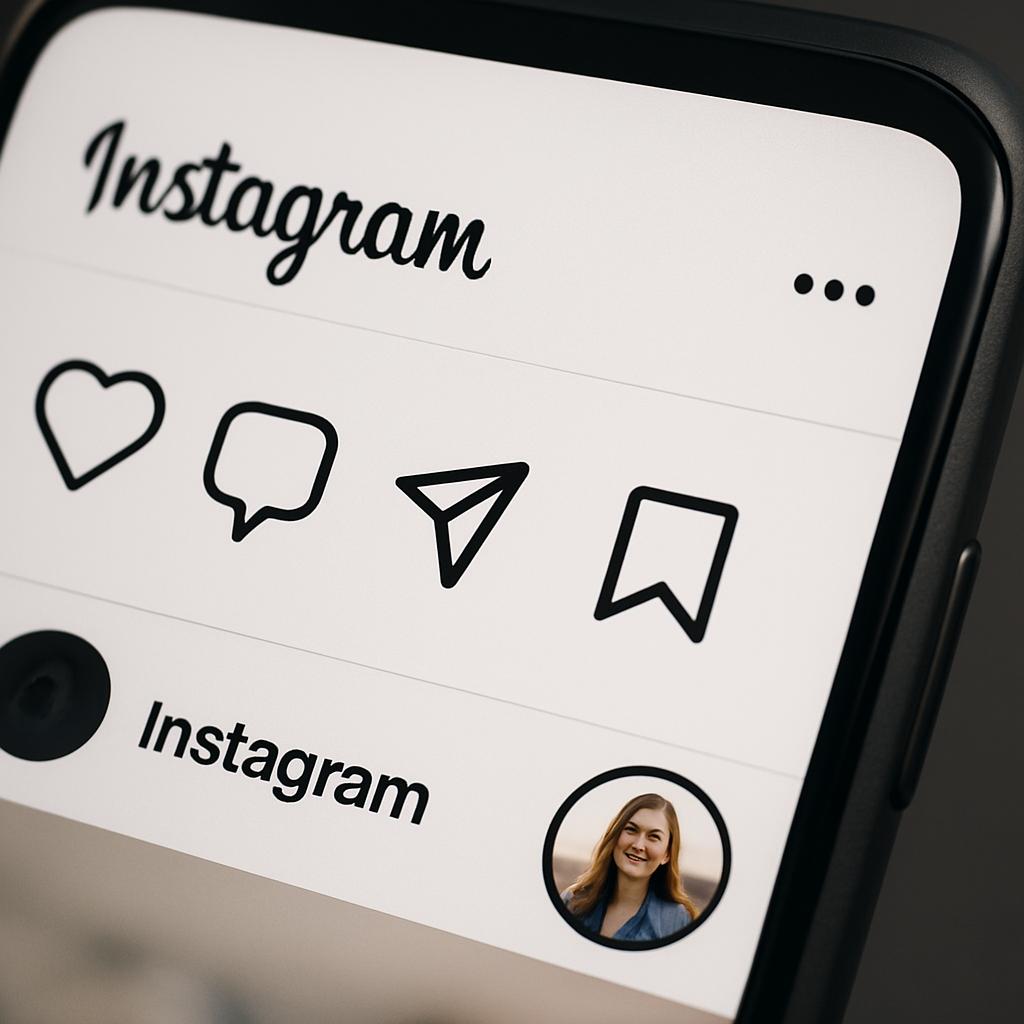
When you look at a feed post, four icons typically sit below the image: like, comment, share, and save. These are the core interactions that determine reach and engagement, so they matter more than they seem.
The heart icon registers a like. Tap it once and the heart fills—an easy way to show appreciation. On some posts, double-tapping the image also triggers the like, which is a fast habit to learn if you browse a lot of content.
The speech bubble opens the comments section; the paper airplane (or messenger icon) lets you share the post directly to someone’s DM or to your story. The bookmark icon saves the post to your private collection for later. Use collections to organize inspiration, product ideas, or competitor analysis.
Stories and their special icons
Story icons appear as circular thumbnails at the top of your feed, often surrounded by colored rings. Those rings tell you who has a new story and what type it is: a gradient ring means a regular story, while a green ring indicates a close-friends story.
If you see a purple-y gradient ring, that often signals the account has added something new to their story or has shared a story with music. A tiny “LIVE” badge on a story thumbnail means the person is currently broadcasting live and you can join in.
Inside a story, icons change fast: reply at the bottom opens a DM, the three dots offer story options, and stickers appear as interactive elements like polls, questions, or sliders. I used a poll sticker last month to choose a cover photo, and the responses were immediate and useful—small story tools can produce outsized engagement.
Interactive story stickers: what the symbols represent
Instagram stories are where stickers live, and each sticker has a distinct icon or label: a music note for song stickers, a question mark for Q&A, a bar graph for quiz results, and a link chain for the link sticker. These are tools for direct audience interaction.
Polls show two choices and give you percentage results; the quiz sticker lets you set one correct answer and see who picked it. The link sticker replaced older «swipe up» mechanics and displays as a small box labeled “link” that viewers can tap.
Use interactive stickers deliberately—ask a question that helps your next post, or run a quick poll to test a product idea. These features make stories a low-effort research channel, and they favor accounts that use them frequently.
Direct messages and message-related icons
The paper plane or messenger bubble in the top bar takes you to DMs. Inside the inbox, you’ll see small icons indicating message types: a video camera for video chat, a camera for sending photos, and a plus sign for creating new message groups or threads.
Message requests appear when someone who doesn’t follow you sends a DM; they land in a separate tab and are marked as requests. If a message has a small lock or restricted label, it often indicates you’ve limited interactions with that user; Instagram uses these controls to protect conversations and maintain privacy.
I’ve seen creators miss paid inquiries because they failed to check the request folder. If you’re building a business through Instagram, periodically review that tab so you don’t overlook opportunities hidden behind an icon.
Reels, live, and video icons explained
The Reels icon looks like a clapper or a stylized play button and opens the short-video stream similar to TikTok. Reels can include music, effects, and text, and their icon is where most trending, viral content shows up.
A “LIVE” badge appears on profiles when someone is broadcasting in real time. Joining a live stream often triggers additional icons like a comment box and a heart to show appreciation during the broadcast. Hosts might see icons for co-hosting or inviting guests to join the live session.
Instagram also uses a TV or play icon to denote longer-form videos. As video formats evolve, these icons can be repurposed slightly, but their core function—directing you to video content—stays steady.
Profile icons and account status symbols
Your profile page has its own set of symbols: the grid icon to view posts, the reels icon for short videos, the tagged photos icon, and a menu icon for settings. Each tab filters content tied to your account, making navigation straightforward.
A blue check next to a username denotes verification. This symbol shows Instagram has confirmed the account’s authenticity and it can impact trust and follower behavior. There’s also a padlock icon used on private accounts’ profiles to indicate restricted access to posts.
For creators and businesses, extra icons appear such as contact buttons, call-to-action links, and insight charts. Those indicators are useful cues that show the account is set up for professional use rather than personal browsing.
Shopping icons: tags, bags, and product labels
Instagram has been turning into a commerce platform, so you’ll see shopping icons more often: a shopping bag icon takes you to the Shop tab, while a small shopping tag on a post means products are tagged in the photo or video.
Tap a product tag to view pricing, details, and a checkout option. For brands, product stickers in stories and tagged items in posts create a direct path from discovery to purchase—a powerful conversion tool when used well.
When a post features multiple product tags, a small overlay will indicate that shoppers can explore more than one item. I’ve used product tags to track which items perform best and then amplified top sellers with ads, guided by the simple clarity that these tiny labels provide.
Composer and post-creation icons
When you create content, the composer screen presents many icons: a plus sign to add content, a gallery thumbnail, a camera icon for live capture, and tools for filters and adjustments. Each icon opens a set of creative options that determine the final look of your post.
Look for icons that let you tag people, add location, and write alt text. The alt text field is crucial for accessibility and SEO—use it to describe the image clearly so screen readers and search engines can interpret your content.
On Reels and stories, icons also include effects, music, and timing controls. These functions are easier to experiment with than they first appear; spend a few minutes testing effects in a draft to discover combinations that fit your style.
Privacy, safety, and account control icons
Instagram includes several safety-related symbols: a shield icon may appear for security settings, a lock shows a private profile, and warning triangles or exclamation points may indicate policy or account issues. These icons are signals to check settings or resolve problems.
Blocking or restricting a user doesn’t always display a permanent icon on their profile, but you’ll see status changes in your settings. If an account is flagged or suspended, Instagram typically provides a notification with an icon and an explanation of next steps.
For peace of mind, review your security settings regularly. I recommend toggling on two-factor authentication and looking for the key icons that represent account protection—small actions that prevent big headaches later.
Notification icons and badges
Red dots and numeric badges appear to draw your attention to unread content, new activity, or pending actions. A little red circle on the home or messages icon usually means fresh content awaiting your review.
Notifications for comments, follows, and mentions normally surface via the heart/icon tab. You can customize which notifications trigger badges in the app’s settings, which helps if you’re trying to focus and reduce digital noise.
If an icon shows a badge that won’t clear, try reopening the app or checking notification settings on your device. Simple resets often remove stuck indicators without deeper troubleshooting.
How to use icons strategically to grow your account
Recognizing icons is just the first step; using them strategically produces results. Save posts you want to study, use story stickers to solicit feedback, and tag products or collaborators to expand reach. Each icon represents a small action that compounds over time.
Post creators who treat icons as tools rather than decorations tend to do better. For instance, adding alt text (an often-overlooked icon in the composer) improves discoverability and accessibility—two benefits in one tidy action.
Keep an eye on live and Reels icons for trending formats. When you see a surge in one area, experiment quickly—being early with a format can give you outsized visibility relative to effort.
Troubleshooting icons that disappear or behave oddly
Sometimes icons vanish or show unexpectedly due to A/B testing, app updates, or cached data. If an icon is missing, check for an app update, clear the app cache (on Android), or reinstall the app. These quick steps solve most issues.
Logged-in users may also experience temporary feature rollouts where certain icons appear only to a subset of accounts. If a feature is important for your workflow, follow official Instagram channels or creator forums to learn about staged rollouts.
If something looks broken—say, a DM icon that won’t open—try switching networks, logging out and back in, or testing on another device. Persistent problems can be reported through Instagram’s support tools, and including screenshots speeds up resolution.
Accessibility and icon clarity: reading beyond the symbol
Icons can be ambiguous for new users or those who rely on accessibility features. That’s why Instagram provides alt text, captions, and text overlays—small elements that make the app usable for more people. Use these features whenever you post.
Clear labeling in your profile, descriptive captions, and accessible story text not only serve users with disabilities but also improve general comprehension for everyone. I make a point of adding concise alt text to every image I post; it takes a minute and often brings incremental engagement from audiences that search visually.
Remember that icons don’t replace context. A shopping bag icon tells you there’s commerce, but the caption explains whether it’s a sale, a new product, or simply a tagged item. That context is what turns a glance into a click.
Final thoughts on reading Instagram’s visual language
Instagram’s icons are small but powerful signposts that guide behavior and surface opportunities. Learning them is like learning shorthand for a bustling city—once you know the streets, you move faster and discover more.
Start by memorizing the main navigation and interaction icons, then add story and composer symbols to your toolkit. Over time these shapes will become reflexive cues that shape how you consume and create content.
If you want more deep-dive guides, examples, and updates about social networks and digital marketing, visit https://news-ads.com/ and explore other materials on the site.